Open a file
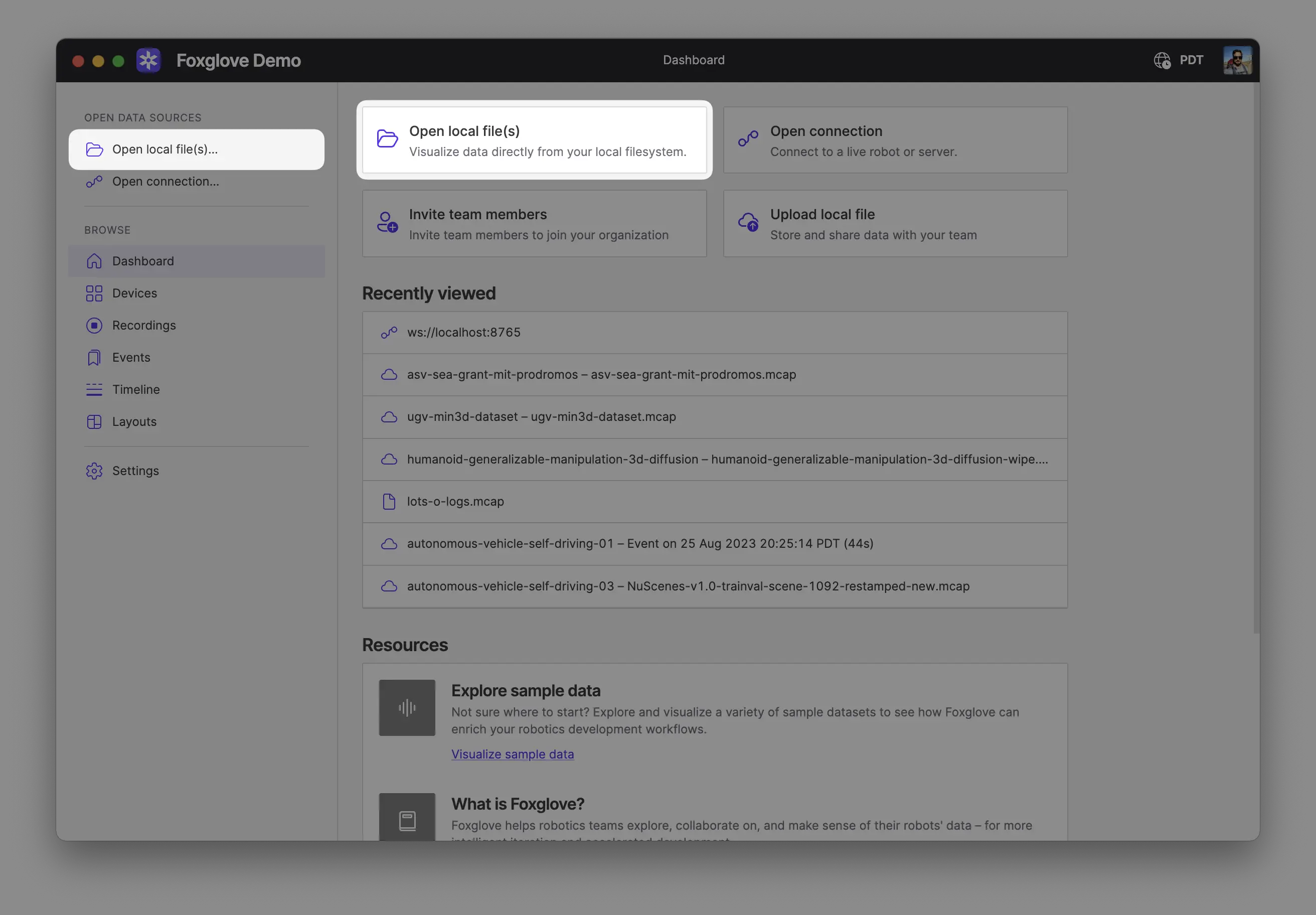
Have a recording already? Foxglove opens local files directly — no upload or conversion required.
Foxglove supports MCAP files, ROS 1 bags, and other common formats.
Open your recording
Open your recording(s) directly from your computer by:
- Dragging and dropping them into Foxglove
- Using
Cmd/Ctrl + o - Clicking Open local file(s) in the app
Opening multiple files together combines them into a single merged data source, as if they came from one recording. This is useful when the files belong to the same recording, for example a single recording split into multiple segments, or a main recording plus a related file such as a separate transforms log. The files must be of the same format.
To keep sources separate and view their data together on a shared timeline, use Comparison mode instead.
Don't have a recording handy? Explore examples instead, or follow the getting started guide — it runs the Foxglove wizard to stream a sample recording live and upload it to your project.
Explore your data
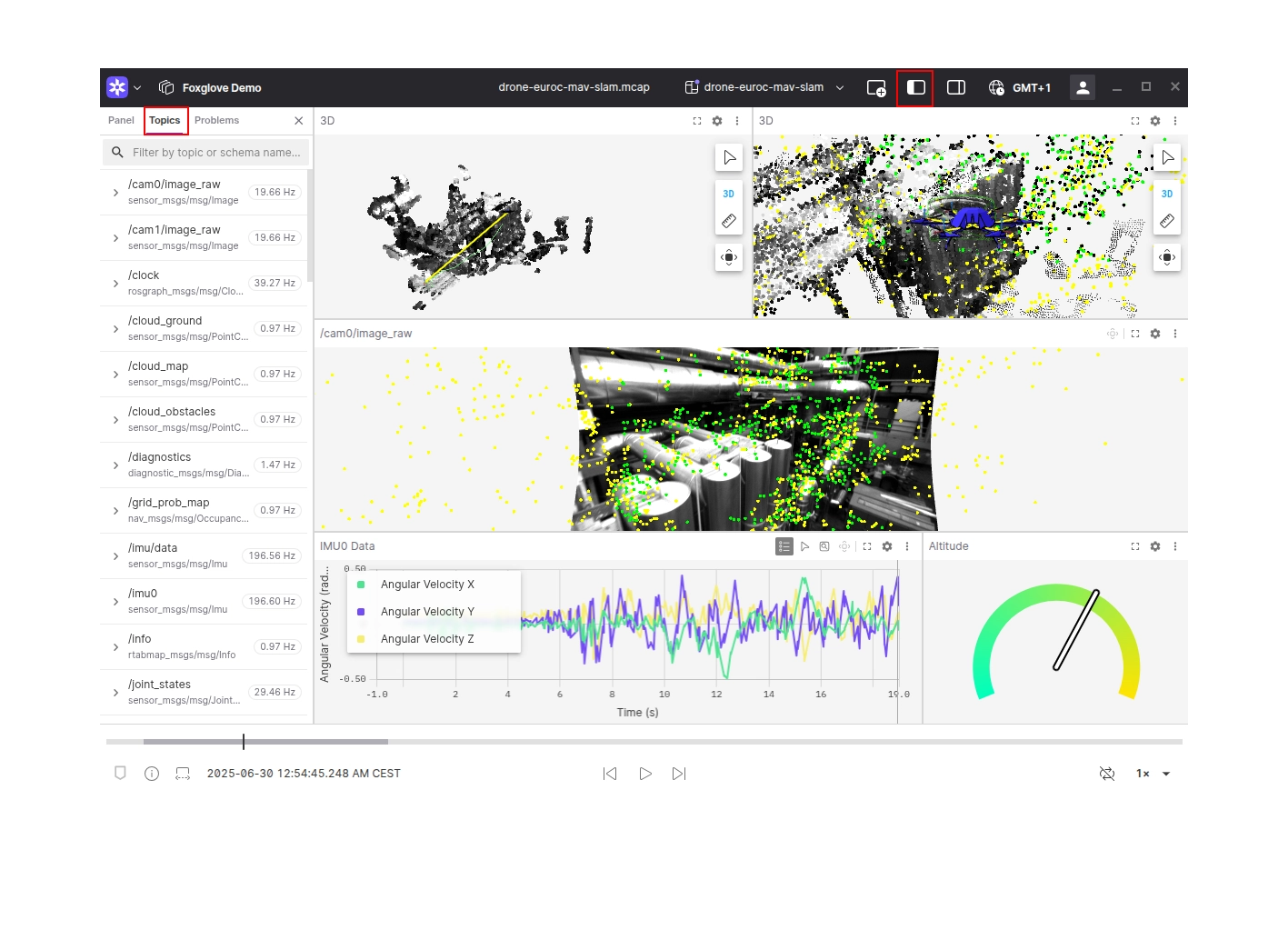
Your data is now available for exploring in Foxglove. Add some panels to begin visualizing what your robot is seeing and producing. Not sure where to start? Try adding a Raw Messages panel, Plot panel, or 3D panel.
To list available topics, open the left sidebar and open the Topics tab.
Next steps
- Import recordings to organize, search, and share them with your team
- Create a layout so your panel setup is ready every time you open a file
- Ready to log your own data? The Foxglove SDK walks you through it