Message path syntax
Use message path syntax throughout Foxglove to drill down to the exact information you want to inspect in your data.
Topics and fields
Reference this sample message for the /my_models topic:
{
  "total": 4,
  "objects": [
    { "width": 10, "height": 20 },
    { "width": 15, "height": 30 },
    { "width": 20, "height": 40 },
    { "width": 25, "height": 50 }
  ]
}
Specify the topic name to display all messages for that topic:
/my_models =>
  {
    total: 4,
    objects: [
      { width: 10, height: 20 },
      { width: 15, height: 30 },
      { width: 20, height: 40 },
      { width: 25, height: 50 }
    ]
  }
To access nested fields, first specify the topic, then use dot notation . to drill down into a nested field:
/my_models.total => 4
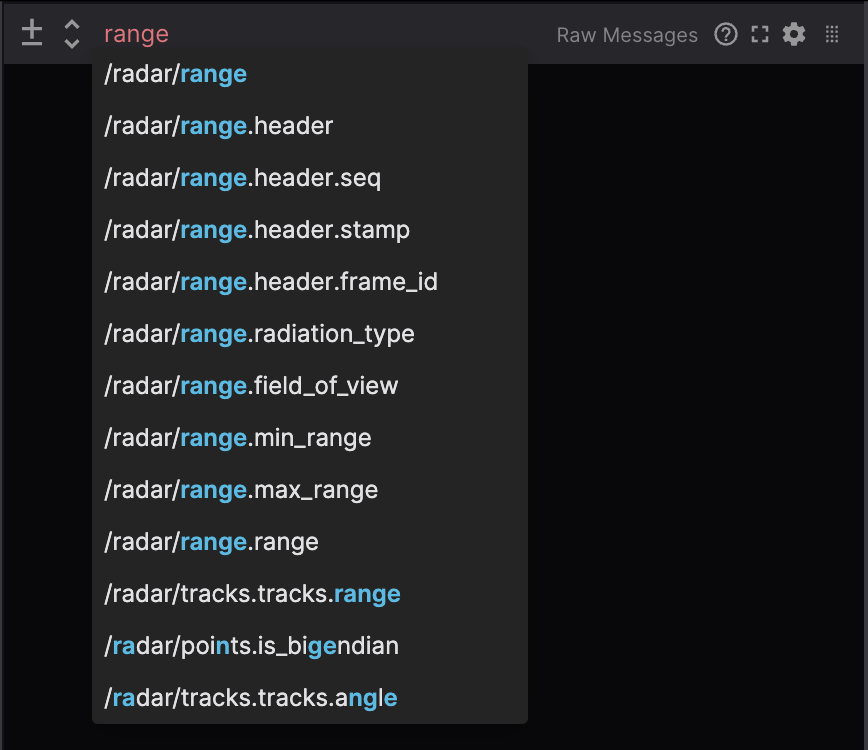
Typing in a message path input field will display a list of matching autocomplete options. Any topics or nested fields that contain the input text will be included in this list.
Indexing into an array
Index into an array with bracket notation:
/my_models.objects[1].width => 15
/my_models.objects[-1].width => 25
Nested arrays (arrays of arrays) are not supported by message path syntax.
Slices
Reference this sample message for the /my_options topic:
{
  "colors": [
    { "r": 10, "g": 20, "b": 100 },
    { "r": 15, "g": 30, "b": 50 },
    { "r": 20, "g": 40, "b": 20 },
    { "r": 25, "g": 50, "b": 70 },
    { "r": 30, "g": 60, "b": 90 }
  ],
  "numbers": [3, 5, 7, 9, 10]
}
Slices will return an array of values:
/my_options.colors[1:2] => [{ r: 15, g: 30, b: 50 }, { r: 20, g: 40, b: 20 }]
/my_options.numbers[-2:-1] => [9, 10]
Using dot notation after an array of objects will map through to access each element's nested field:
/my_options.colors[1:3].r => [15, 20, 25]
/my_options.colors[:].g => [20, 30, 40, 50, 60]
Using variables to slice
Slice on a variable by prepending each variable name with a $. For example, setting my_start_idx to 3 and my_end_idx to 4:
/my_options.colors[$my_start_idx:$my_end_idx] => [{ r: 25, g: 50, b: 70 }, { r: 30, g: 60, b: 90 }]
/my_options.colors[$my_start_idx:$my_end_idx].b => [70, 90]

/my_options.numbers[$my_start_idx:$my_end_idx] => [9, 10]
Filters
Reference these sample messages for the /my_books topic:
// message 1
{
  stats: {
    pages: 100,
    author: "Beatrice Potter"
  },
  readers: [
    { id: 1, name: "Ashley", isCurrentlyReading: true },
    { id: 2, name: "Baron", isCurrentlyReading: false },
    { id: 3, name: "Charlie", isCurrentlyReading: true }
  ]
}

// message 2
{
  stats: {
    pages: 210,
    author: 'Tommy "Two Gun" Simon'
  },
  readers: [
    { id: 4, name: "Dana", isCurrentlyReading: true },
    { id: 5, name: "Ethan", isCurrentlyReading: false },
    { id: 6, name: "Frank", isCurrentlyReading: false }
  ]
}
Filter messages based on their fields’ boolean, number, or string values. The following comparison operators are supported: ==, !=, <, <=, >, >=.
Create filters in message path syntax using curly brackets. Messages that don't match the filter will be skipped entirely:
/my_books{stats.pages>200} =>
  {
    stats: {
      pages: 210,
      author: 'Tommy "Two Gun" Simon'
    }
  }

/my_books{stats.pages==100}.author => "Beatrice Potter"

/my_books{stats.pages==500} => // no value returned
Filtering on nested fields
You can also filter on a message’s nested field values using a combination of slices and filters:
/my_books.readers[:]{isCurrentlyReading==true}.name =>
  ["Ashley", "Charlie"] // message 1
  ["Dana"] // message 2
Using variables to filter
In addition to filtering on primitive values, you can filter on variables. Setting variable my_id to 1:
/my_books.readers[:]{id==$my_id} =>
  { id: 1, name: "Ashley", isCurrentlyReading: true } // message 1
  // No value returned for message 2
Using multiple filters
When you apply multiple filters, only messages that satisfy all filters will be returned (in other words, an AND expression):
/my_books.readers[:]{id==1}{isCurrentlyReading==true}.name =>
  "Ashley" // message 1
  // No value returned for message 2

/my_books.readers[:]{id==1}{isCurrentlyReading==false}.name =>
  // No value returned for message 1
  // No value returned for message 2

/my_books.readers[:]{id==5}{isCurrentlyReading==false}.name =>
  // No value returned for message 1
  "Ethan" // message 2
Other considerations
Escaping quotation marks in strings is not supported, but you can use single or double quotes, which allows you to express most strings:
/my_books{stats.author=='Tommy "Two Gun" Simon'}.readers[:].name =>

  // No value returned for message 1
  ["Dana", "Ethan", "Frank"] // message 2
Enum names in filters
For fields with enum types, you can filter using the enum name instead of the numeric value:
/my_topic{status==MOVING}    // filters where status field equals the MOVING enum value
/my_topic{status==2}         // equivalent numeric filter
Enum names are unquoted bare words. They are case-sensitive and must match the enum definition exactly. If the name doesn't match any defined enum value, the filter matches nothing.
For boolean fields, the parser recognizes true and false as boolean values:
/my_topic.readers[:]{isActive==true}.name
The parser does not treat quoted strings as enum names. Use unquoted identifiers for enums and quoted strings for string comparisons:
/my_topic{status==OK}        // enum name, resolved to numeric value
/my_topic{name=="OK"}        // string comparison
Variables cannot be used outside of slicing and filtering in message paths.
Message path functions
The Plot, Raw Messages, State Transitions, Gauge, and Indicator panels support appending a message path function suffix to transform the final value returned by a path. Support varies by panel:
| Function category | Plot | Raw Messages | State Transitions | Gauge | Indicator |
|---|---|---|---|---|---|
Scalar (@abs, @degrees, @radians, and similar functions) | ✓ | ✓ | ✓ | ✓ | ✓ |
Operand (@add(number), @sub(number), @mul(number), @div(number)) | ✓ | ✓ | ✓ | ✓ | ✓ |
Array (@length) | ✓ | ✓ | ✓ | ✓ | ✓ |
Vector (@norm) | ✓ | ✓ | ✓ | ✓ | ✓ |
Struct (@rpy, @quat) | ✓* | ✓ | ✓* | ✓* | ✓* |
Time-series (@derivative, @delta, @timedelta) | ✓** | — | — | — | — |
@rpy.yaw) for scalar value; ** Timestamp x-axis only.
Use .@functionname syntax, with an optional operand for functions that accept one:
/imu.linear_acceleration.x.@abs
/wheel.speed.@mul(3.6)
/joint_states.position.@length
/imu.linear_acceleration.@norm
The sections below define each function (including vector magnitude, quaternion/RPY, and time-series behavior), plus chaining functions for how suffixes combine. Panel docs summarize what each panel supports and link here for full definitions.
Scalar
Scalar functions align with JavaScript's Math functions where applicable.
Angles use radians unless you convert with @degrees or @radians.
Operand
Operand functions accept one numeric argument in parentheses. Values can also come from variable references.
Array
Use @length to return the JavaScript .length of an array or typed array:
/joint_states.position.@length
/markers.markers.@length
The function returns 0 for an empty array. Use the function suffix syntax (.@length) for arrays; field access like .length is reserved for message objects that actually define a field named length.
Previously, paths ending in .length, .byteLength, or .buffer on an array or typed array value resolved to the underlying JavaScript property. Those paths no longer resolve and should be migrated to .@length for length lookups; the other properties have no message-path equivalent.
Vector
.@norm
Computes the Euclidean norm (magnitude) of an object with x, y (and optionally z) numeric properties, or of a numeric array:
/imu.linear_acceleration.@norm
/gps.velocity.@norm
/joint_states.velocity.@norm
Struct
.@rpy
Converts a quaternion object (x, y, z, w) to roll, pitch, and yaw (radians) using XYZ Euler order (intrinsic rotations around X/roll, then Y/pitch, then Z/yaw).
/odom.orientation.@rpy
/odom.orientation.@rpy.yaw
Append field access (for example, .yaw or .roll) when you need a scalar numeric result.
.@quat
Converts an RPY object (roll, pitch, yaw in radians) to a quaternion, as the inverse of .@rpy using the same XYZ Euler convention.
/odometry.euler.@quat
/odometry.euler.@quat.w
Append field access (for example, .w) when you need a scalar numeric result.
Time-series
When a message path includes filters, time-series modifiers use consecutive samples that match the filter (for example, /imu{sensor_id==3}.@timedelta; see @timedelta).
.@delta
Change between consecutive samples.
In the Plot panel with a timestamp x-axis, plots the change in y-value between consecutive samples: y[n] - y[n-1].
.@derivative
Rate of change between consecutive samples.
In the Plot panel with a timestamp x-axis, plots the rate of change in y-value: (y[n] - y[n-1]) / (t[n] - t[n-1]). The time values t come from the series' Timestamp setting (Log time, ROS header stamp, Publish time, or a custom field timestamp path).
.@timedelta
Elapsed time in seconds between consecutive samples.
In the Plot panel with a timestamp x-axis, plots elapsed time in seconds between consecutive samples: t[n] - t[n-1]. The time values t come from the series' Timestamp setting.
See the Plot panel for timestamp sources, filter behavior with consecutive samples, and valid or invalid chains that mix time-series functions with other modifiers.
Chaining functions
The sections above define each function on its own. To combine them, append additional .@ functions so each step receives the output of the previous one. Evaluation is left-to-right.
/odom.orientation.@rpy.yaw.@degrees
/odom.orientation.@rpy.roll.@abs
For example, @rpy with field access .yaw, then @degrees, as in the path .@rpy.yaw.@degrees, extracts yaw from a quaternion orientation and converts radians to degrees in one expression.
Time-series functions (@delta, @derivative, @timedelta) have extra rules: at most one may appear in a chain, and only scalar functions may follow it. How filters interact with consecutive samples for those modifiers is covered in the note under the Time-series category above. See the Plot panel for valid and invalid examples with time-series functions in a chain.